 TechBlonhub A new digital technology era.
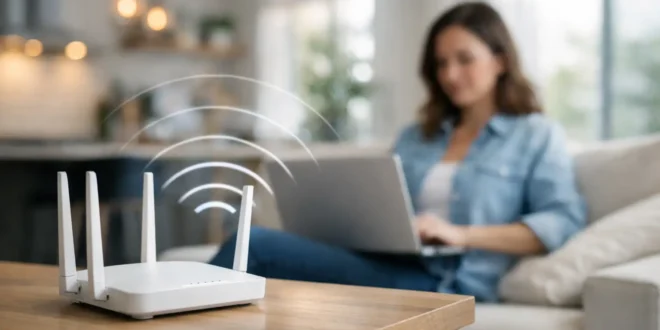

A fast internet plan cannot compensate for a router hidden in a cabinet, parked beside a TV, or stranded at one end of the house. Router placement for better signal is often the quickest way to fix unreliable video calls, slow downloads, and rooms where Wi-Fi seems to disappear. Before replacing hardware or paying for a faster plan, make sure the signal has a fair path to reach the devices that need it.
Wi-Fi is radio communication, not magic. Walls, floors, appliances, metal surfaces, and even the water in a large fish tank can weaken or redirect it. A well-placed midrange router can outperform a premium model installed in the wrong corner.
Start Router Placement for Better Signal at the Center
The best default location is as close to the physical center of the area you want to cover as practical. In a single-family home, that may be a central room, hallway, or open living space. In a small office, it may be near the middle of the active work area rather than the network closet.
This recommendation has limits. Your cable or fiber entry point may be on an exterior wall, and moving a router might require a longer Ethernet cable, a coax extension, or a different installation. Those changes are usually worthwhile if half the building currently receives weak coverage.
Think about where people actually use the network. A router centered in unused space is not automatically ideal. If most traffic comes from a home office, living room, and bedrooms on one side of the building, position the router to serve those high-demand areas instead of trying to create perfectly equal coverage everywhere.
Raise the router above floor level
Put the router on a shelf, desk, wall mount, or open cabinet at roughly chest height or higher. Floor placement is a common and costly mistake. Furniture, people, and dense building materials block more of the signal when the router starts near the ground.
Avoid enclosing it in a media console, storage closet, or metal rack unless that rack is designed for wireless equipment. A router needs airflow for heat management and open space for radio coverage. A neat installation is useful, but not if it turns a capable Wi-Fi system into a weak one.
Keep antennas clear and correctly positioned
If your router has external antennas, do not press them against a wall or hide them behind equipment. For a typical home with devices on the same floor, place some antennas vertically. If you need to serve rooms above or below, angle one or more antennas horizontally or diagonally.
There is no universal antenna position that fixes every building. Test a change, then measure the result in the rooms that matter. Modern routers use multiple antennas and beamforming, so clear placement tends to matter more than obsessing over a single exact angle.
What Weakens Wi-Fi Signal Indoors
The most frustrating Wi-Fi problems are usually physical. Signal strength can look excellent near the router and collapse after it crosses two dense walls. Brick, concrete, plaster with metal mesh, tile, mirrors, and large metal appliances are especially disruptive.
Kitchen placement deserves extra caution. Microwaves can interfere with 2.4 GHz Wi-Fi while operating, and refrigerators create a large metal barrier. Keep the router away from both when possible. Bluetooth devices, wireless cameras, baby monitors, and older cordless phones can also contribute to congestion on 2.4 GHz.
Do not place a router directly beside these common problem sources:
- televisions, soundbars, and gaming consoles packed into an entertainment center
- large mirrors, aquariums, filing cabinets, or metal shelving
- microwave ovens, refrigerators, and other major appliances
- electrical panels, utility closets, and dense bundles of power cables
A few feet of separation can make a measurable difference. The goal is not to create a laboratory-perfect environment. It is to remove obvious obstacles before spending money on more equipment.
Match the Router Location to Your Wi-Fi Band
Modern routers typically offer 2.4 GHz, 5 GHz, and sometimes 6 GHz bands. They behave differently, which affects what smart placement looks like.
The 2.4 GHz band travels farther and generally handles walls better, but it is slower and more prone to interference. It remains useful for smart plugs, sensors, cameras, and devices far from the router. The 5 GHz band provides higher speeds and more channel capacity, but its range drops faster through walls and floors. The newer 6 GHz band can deliver excellent performance for compatible devices, yet it is even more dependent on a clear, short path.
That means a router placed centrally in an open apartment may make 5 GHz and 6 GHz perform extremely well. In a long, older home with brick interior walls, a central router may still leave distant rooms relying on 2.4 GHz. Placement helps, but radio physics sets the boundary.
Use separate network names for each band only if your devices are connecting poorly and you need manual control. For most users, a properly configured router with band steering is simpler. It can guide compatible devices toward the best available band without forcing every person in the building to make network decisions.
Test Before You Buy More Hardware
Do not judge Wi-Fi from the icon on your laptop alone. Walk through the building with a phone, laptop, or Wi-Fi analyzer and test in the places where work, streaming, gaming, or video meetings actually happen. Check speed, latency, and connection stability at different times of day.
Start with a baseline near the router, then compare it with the problem room. If speed falls sharply after a single wall, reposition the router before changing settings. If performance is weak everywhere, investigate the internet service, router configuration, or aging hardware instead.
A simple testing routine works well:
- Run a speed test within a few feet of the router.
- Repeat it in the rooms with complaints.
- Move the router to a higher, more central, open location.
- Repeat the same tests with the same device.
- Compare latency and consistency, not just the highest download number.
For an office, test during normal business activity. A location that seems fine on a quiet weekend can struggle when dozens of laptops, phones, printers, cameras, and cloud applications are active.
When Better Placement Is Not Enough
A single router has practical limits, especially in multistory homes, long buildings, and offices with concrete or brick partitions. If you have moved the router centrally, raised it, cleared nearby obstructions, and still have dead zones, expand the network instead of expecting more from one access point.
A mesh Wi-Fi system is often the simplest option for homes and small offices. Place the main router centrally, then add nodes where the signal begins to weaken, not only inside the dead zone. Nodes need a strong connection back to the main unit or another node. Putting one at the farthest possible point can simply repeat a poor signal.
For higher-demand environments, wired access points are the better long-term choice. Ethernet backhaul avoids the performance loss that can occur when mesh nodes use Wi-Fi to communicate with each other. This matters for businesses running cloud services, VoIP calls, security cameras, point-of-sale systems, or large file transfers.
Wi-Fi extenders can help in a limited situation, but they are usually the compromise option. They can introduce another network hop, reduce throughput, and create confusing handoffs as devices move around the building. Use one only when running Ethernet or installing a mesh node is not practical.
Placement Mistakes That Create Expensive “Fixes”
Buying a more powerful router is tempting, but it does not change the location of your walls or the receiving capability of a phone, laptop, or smart TV. Wi-Fi communication works both ways. Even if a router can transmit farther, a low-power client device may not reliably transmit back.
Another mistake is placing the router at the edge of the building because that is where the installer left it. The internet connection can enter there, but the wireless network does not have to stay there. A longer cable run or a wired access point is often cheaper than years of weak coverage and unnecessary hardware upgrades.
Treat router placement as part of your network design, not an afterthought. Put the signal where people and devices work, measure the result, and add wired or mesh coverage only where the building proves it is needed.