 TechBlonhub A new digital technology era.
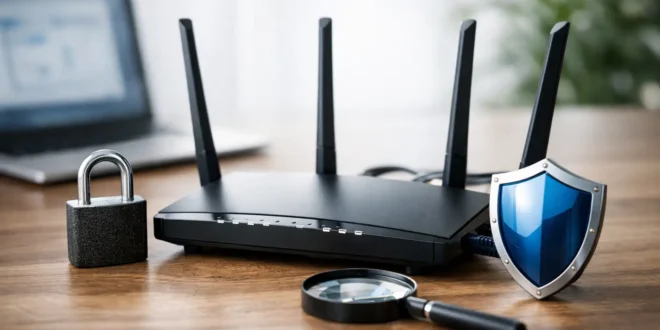

A router is more than the box that gets your devices online. It is the gatekeeper between your network and the internet, and a few neglected settings can turn a fast Wi-Fi connection into an easy target. This guide to router security settings explained focuses on the controls that make a real difference for a home network, remote-work setup, or small office.
The goal is not to turn every router feature on. Some settings improve protection but can interfere with gaming, smart-home devices, VPN access, or legitimate remote work. The smart approach is to secure the basics first, then make deliberate exceptions only when you understand why they are needed.
Start With the Router Admin Account
Your Wi-Fi password and your router administrator password are not the same thing. The administrator account controls the router itself: its wireless settings, firmware, connected-device list, firewall rules, and remote management options. If an attacker gets this password, changing the Wi-Fi password alone will not fix the problem.
Replace the default administrator password immediately. Do not reuse the password from email, banking, or any other critical account. Use a long, unique passphrase stored in a reputable password manager. If the router allows you to change the admin username, do that too. A non-default username removes one piece of information an attacker may otherwise be able to guess.
Many newer routers offer multi-factor authentication for cloud-based management apps. Enable it when available. Cloud management can be useful for checking a network while away, but it also creates another account worth protecting.
Keep Router Firmware Current
Firmware is the router’s operating system. Manufacturers release updates to fix security flaws, improve device compatibility, and sometimes patch vulnerabilities that are actively being exploited. A router can have excellent Wi-Fi hardware and still be unsafe if it has not been updated for years.
Turn on automatic firmware updates if the router supports them. If not, set a recurring reminder to check for updates every few months. Before manually updating, save or record the current configuration. Some updates reset settings, and restoring from an old backup is only wise if that backup does not reintroduce insecure options.
For businesses, firmware updates deserve a little more planning. Apply them during a maintenance window and verify that VPN tunnels, VoIP phones, static IP assignments, and firewall rules still work afterward. That small amount of caution is better than leaving a known vulnerability exposed indefinitely.
Router Security Settings Explained: Wi-Fi Encryption
Wireless encryption is one of the most important settings in the control panel. It determines how traffic between a device and the router is protected from nearby eavesdroppers.
Choose WPA3-Personal if all of your devices support it. WPA3 provides stronger protection against password-guessing attacks than older standards. If older devices cannot connect, use WPA2/WPA3 Transitional Mode or WPA2-Personal with AES encryption. The best choice depends on the oldest device you still need to support.
Avoid WEP, WPA, and WPA2 with TKIP. These older options exist mainly for compatibility with outdated hardware and should not be used on an active network. If a legacy printer, camera, or controller requires one of them, isolate that device on a separate network and make a replacement plan.
Your Wi-Fi passphrase should be long and unique. A memorable sentence with spaces and punctuation is usually stronger and easier to manage than a short, complicated-looking string. Do not use your address, business name, phone number, or a phrase visible on social media.
Should You Hide the Network Name?
Hiding the SSID, or network name, is often presented as a security feature. It is not. Devices still reveal the network when they try to reconnect, and basic scanning tools can identify hidden networks. It may create setup headaches without meaningfully stopping an attacker.
Use a neutral SSID that does not reveal your name, apartment number, company, or router model. That is sensible privacy, not security theater.
Disable WPS and Limit Remote Access
Wi-Fi Protected Setup, usually labeled WPS, was designed to connect devices by pressing a button or entering a PIN. Its PIN-based method has a history of weaknesses, and there is little reason to leave it enabled. Disable WPS unless you have a specific, temporary reason to use it.
Remote administration is another setting that deserves scrutiny. It lets you access the router control panel from outside the local network. For most households and small offices, it should remain off. If remote management is essential, restrict it to a VPN connection or specific trusted IP addresses, use multi-factor authentication, and confirm the router receives regular security updates.
Do not confuse remote administration with normal internet access. Disabling it will not stop employees from using cloud apps or prevent you from streaming, browsing, or receiving email. It only closes off the router’s own management interface from the public internet.
Review UPnP, Port Forwarding, and the Firewall
A router’s firewall blocks unsolicited connections from the internet by default. Leave it enabled. Features that punch controlled holes through that protection require more attention.
UPnP, or Universal Plug and Play, allows devices and applications to request automatic port forwarding. It can make multiplayer gaming, video calling, and some smart devices work with less setup. It can also allow a compromised device on your network to expose a service to the internet without you deliberately creating a rule.
For a simple home network, disabling UPnP is the safer choice if everything continues to work. If a game console or application breaks, decide whether enabling UPnP is worth the convenience or whether a single manual port-forwarding rule is more appropriate. On a business network, UPnP should generally stay disabled.
Review existing port-forwarding rules and remove anything you do not recognize or no longer use. Never forward ports for the router administration page, Remote Desktop, network-attached storage, or IP cameras directly to the internet unless there is a well-managed security design behind it. A VPN is usually a safer way to reach internal resources remotely.
Separate Guests and Smart Devices
Guest Wi-Fi is not just for visitors. It is one of the easiest ways to keep lower-trust devices away from laptops, servers, shared storage, and work systems. Put guests on a separate network with a different password, and enable client isolation if the router offers it. That prevents guest devices from seeing one another or reaching your main network.
Smart TVs, speakers, plugs, cameras, and older IoT devices are another reason to segment. They often receive fewer updates than phones and computers. If your router supports a dedicated IoT network, VLANs, or device isolation, use it for devices that do not need access to your primary computers.
There is a trade-off: segmentation can complicate device discovery. A phone on the main network may not automatically find a printer or smart speaker on an isolated network. Start with guest isolation, then move higher-risk smart devices to their own segment as your router’s features and your comfort level allow.
Use Safer DNS and Check Connected Devices
DNS translates website names into IP addresses. Many routers allow you to choose a DNS provider and may support encrypted DNS settings such as DNS over HTTPS or DNS over TLS. A privacy-focused DNS service can reduce exposure to some tracking and may block known malicious domains, but it is not a replacement for endpoint security or safe browsing habits.
If you manage a small business, DNS filtering can add useful protection against phishing and malware command-and-control domains. Test it carefully. Overly aggressive filtering can block legitimate business tools, updates, or customer portals.
Check the connected-device list at least once a month. Unknown devices may be harmless, such as a phone using a randomized hardware address, but they deserve verification. Rename recognizable devices in the router dashboard, remove devices that should no longer have access, and change the Wi-Fi password if you cannot identify something connected.
Settings That Need Extra Care
Some router menus include MAC address filtering, DMZ mode, parental controls, traffic monitoring, and IPv6 firewall settings. MAC filtering is not reliable access control because device addresses can be copied. It can be useful for inventory, but it should never replace WPA2 or WPA3 encryption.
DMZ mode is especially risky because it sends most inbound internet traffic to one device. Do not use it as a quick fix unless you fully understand the exposure and have secured the target device. For IPv6, make sure the IPv6 firewall remains enabled. IPv6 devices can be globally reachable in ways that surprise people accustomed to older IPv4 networks.
After making changes, test what matters: connect phones and laptops, print a document, use video calls, check smart-home controls, and confirm remote workers can reach approved services. Security settings only help when they protect the network without quietly disrupting the work and devices that depend on it.
A secure router is not a one-time project. Treat its settings like the locks on an office or home: check them after changes, replace weak defaults, and do not leave an open door simply because it is convenient.